Bolt
Build a UiPath coded web app in Bolt and deploy it to UiPath using @uipath/uipath-typescript and the uip CLI. Bolt generates the app in an in-browser WebContainer and deploys it for you, running the CLI in that same container.
Builds on Coded Apps
Bolt apps deploy as standard UiPath coded apps. This page covers the Bolt-specific steps; for platform, SDK, and CLI details see Coded Apps.
Watch the walkthrough
The full build, start to finish — prompt to a live app on a UiPath tenant.
The other builders are in the video gallery.
How it works
You build the app in Bolt with the UiPath coded-apps skill (so it uses @uipath/uipath-typescript and the correct coded-app structure), then ask it to deploy — the skill runs the uip CLI for you (build → pack → publish → deploy) inside Bolt. The deployed app is served at https://<org>.uipath.host/<app>.
Prerequisites
- A UiPath Automation Cloud account.
- Two external OAuth apps (UiPath Admin → External Applications):
- a non-confidential (public) app —
clientId+ scopes, used for end-user sign-in inside the app (baked into the build; safe to expose in the browser). - a confidential app —
clientId+clientSecret, used at deploy time byuip login. Give itApps.ReadandApps.Write, and assign it to the Orchestrator folder you will deploy to.
- a non-confidential (public) app —
See Coded Apps → Getting Started for the full external-app and uipath.json setup.
Step 1 — Load the UiPath coded-apps skill
Pick one:
Option 1 — add it to your Skills library from GitHub (recommended). In Bolt: Settings → Skills library → Add skill → From GitHub, paste the skill's link, and create it:
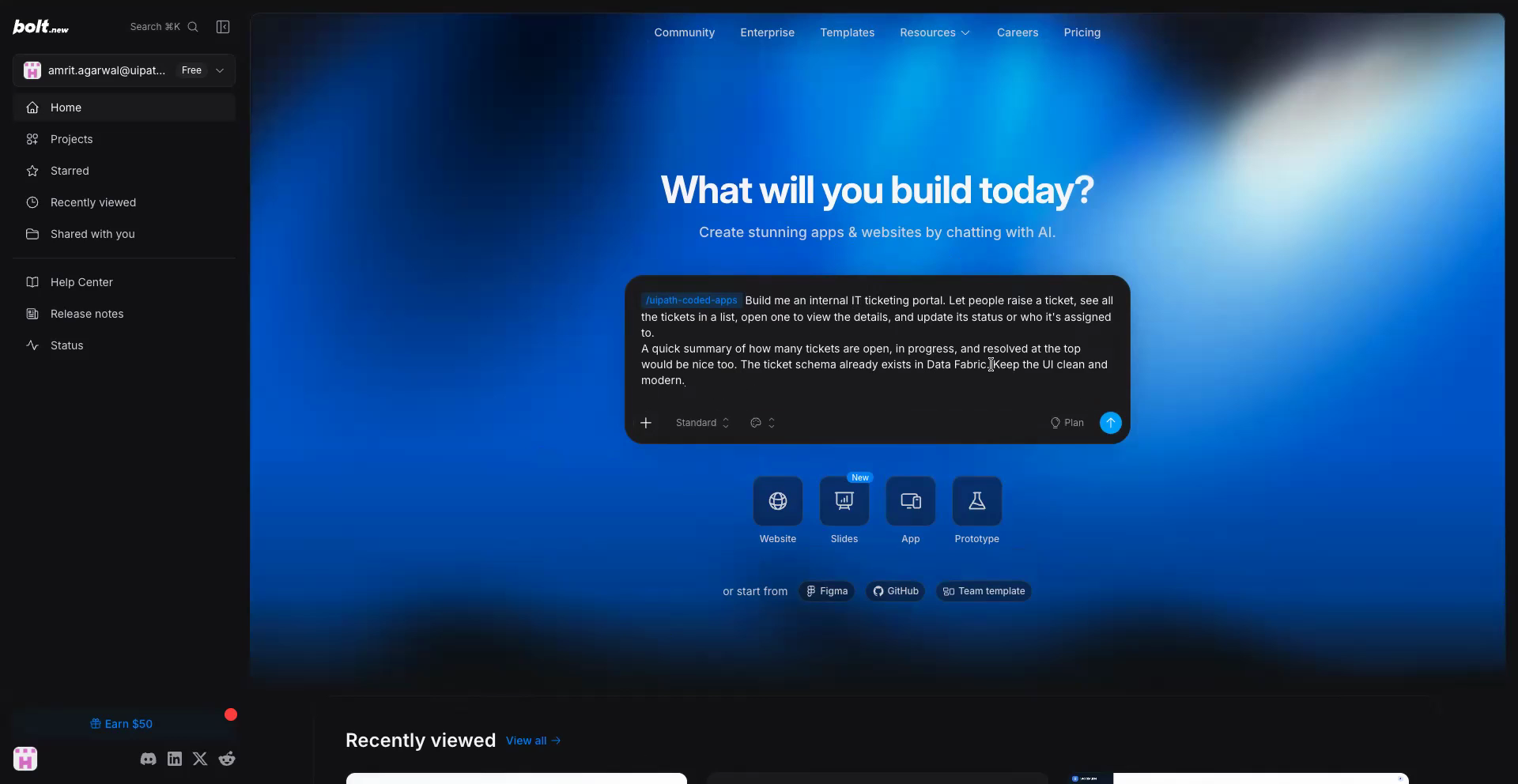
The skill lands in your workspace library. In the chat composer, attach it from the + menu (+ → Skills → uipath-coded-apps) or invoke it with /uipath-coded-apps — it appears in the prompt as a tag.
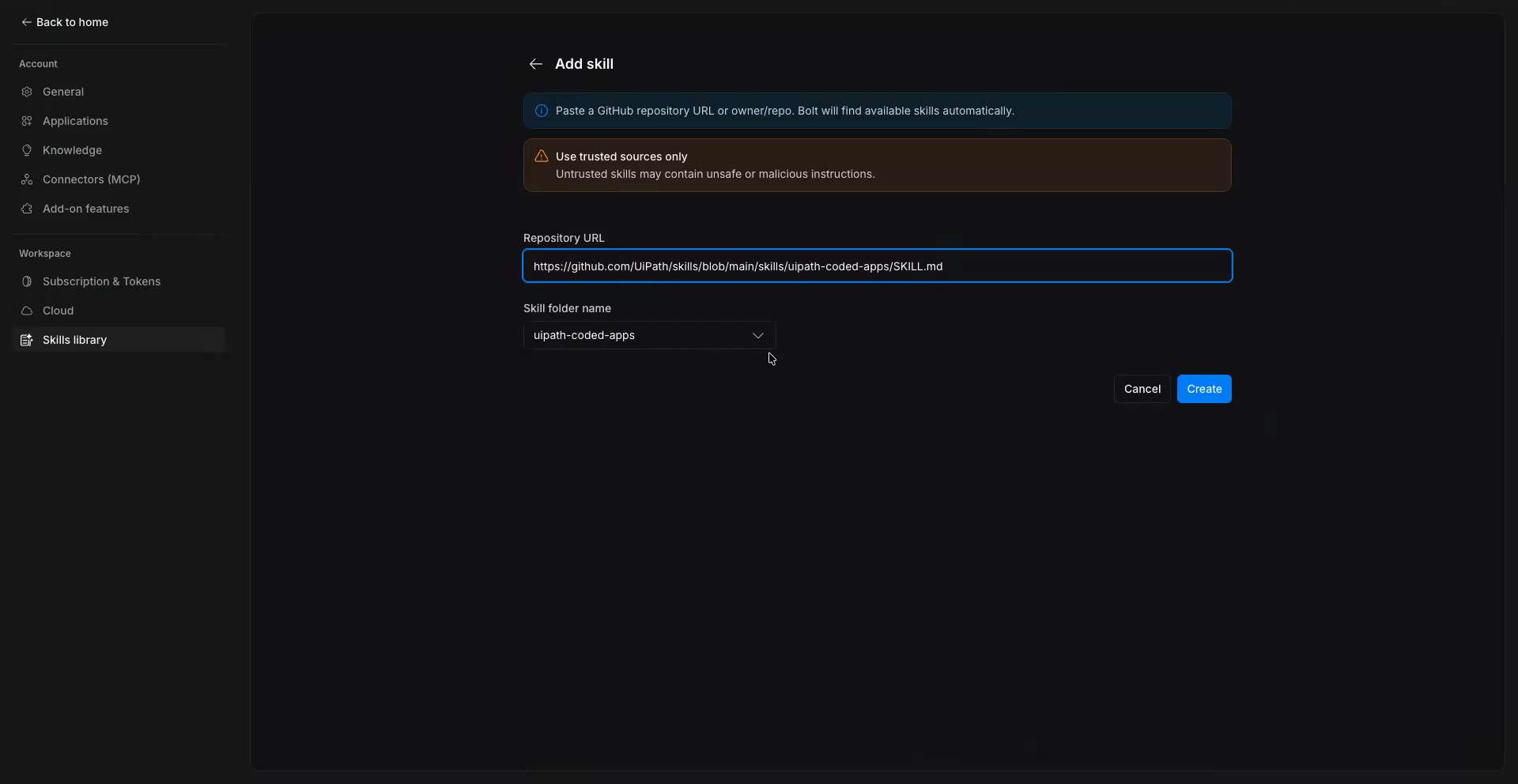
Option 2 — reference the skill in your prompt. Add the same link as a line in your Step 2 build prompt so Bolt's agent loads the skill directly from source:
Use the UiPath coded-apps skill at https://github.com/UiPath/skills/blob/main/skills/uipath-coded-apps/SKILL.md
Enable the skill for the project
A workspace-library skill is not automatically active in a project. Open the project's Settings → Skills and enable uipath-coded-apps there too — otherwise Bolt reports the skill as unavailable even though it is in your library.
Importing the skill as a ZIP
If you upload the skill as a ZIP instead, two Bolt-specific constraints apply:
- Bolt's importer accepts
.mdfiles only — it rejects any other extension (.css,.gz,.mjs, …). Remove or wrap non-markdown assets before zipping. - Remove the
allowed-tools:line from theSKILL.mdfrontmatter. It whitelists Claude Code tool names; Bolt enforces the list literally against its own (differently named) tools, which blocks every tool call — including the one needed to deactivate the skill — and deadlocks the agent.
Step 2 — Build your app
With the skill loaded, just describe the app you want in plain language — there is no special wording or UiPath boilerplate to add. The skill handles the coded-app scaffolding for you.
The builder asks for the connection details it needs — organization, tenant, Data Fabric entity, and the public app's client ID — as it goes, so you don't supply them up front.
Must be a static SPA
Coded apps are static sites — the build must emit index.html at the dist root. The skill scaffolds this for you; if the builder defaults to a server-rendered (SSR) framework, switch it to a static/SPA build. Bolt commonly scaffolds Vite apps — keep base: './' so assets resolve under the deployed base path.
Step 3 — Add your deploy credentials
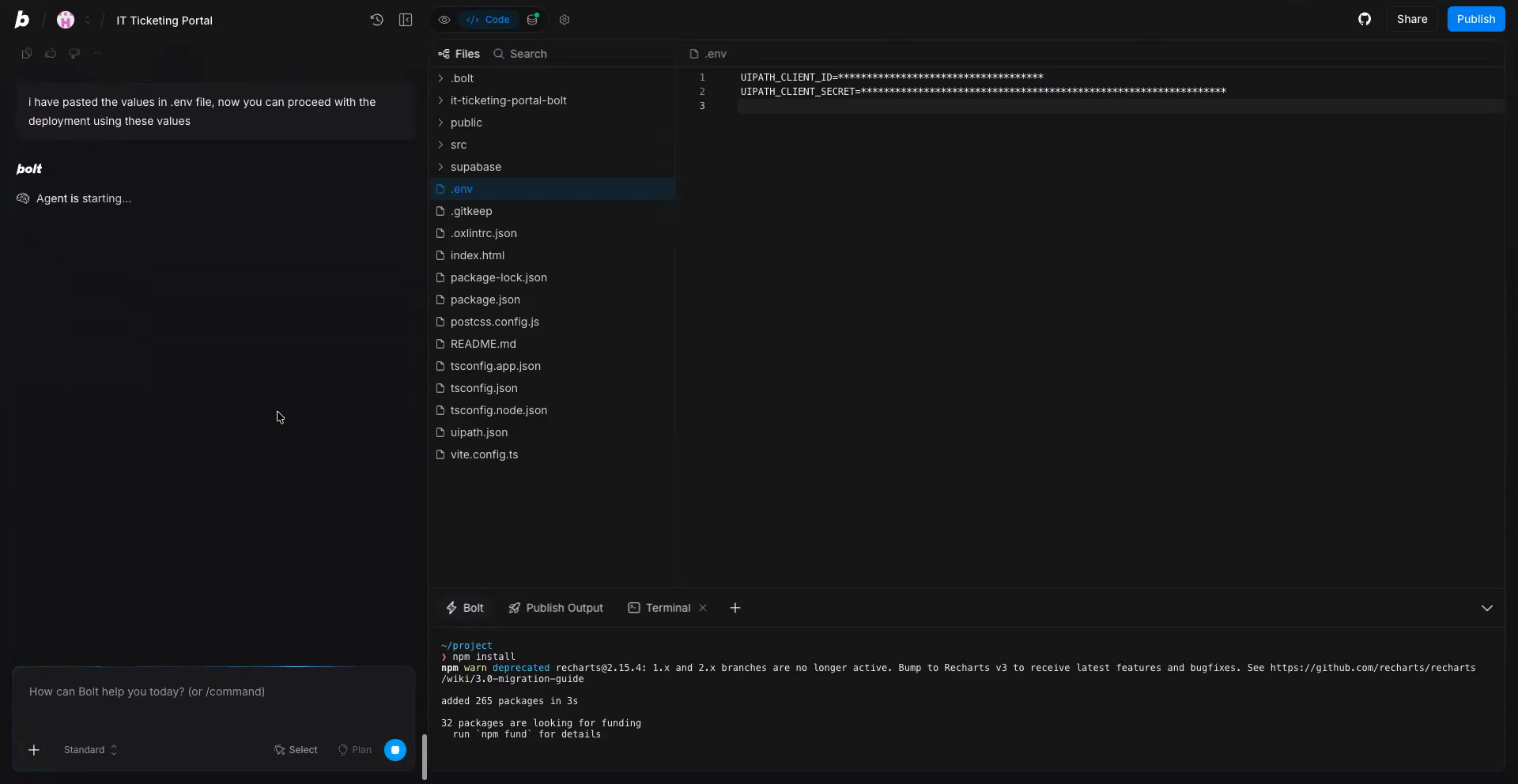
Bolt's managed secrets are not exposed to the shell its agent runs commands in, so the practical route is a .env file in the project:
- Ask Bolt to create a
.envwith emptyUIPATH_CLIENT_IDandUIPATH_CLIENT_SECRETkeys and add.envto.gitignore. - Fill the two values in yourself, directly in the file — Bolt's editor masks
.envvalues on screen.
Never paste the secret into chat: chat is stored with the project (visible to anyone it's shared with), it enters the model's context, and agents have been known to hard-code pasted secrets into generated source. Typing the values into .env yourself keeps them out of both.
Step 4 — Deploy
Just ask Bolt to deploy. Name the Orchestrator folder you want the app in — the skill resolves it and runs the whole uip pipeline in Bolt's terminal, reading the .env you filled in (Step 3):
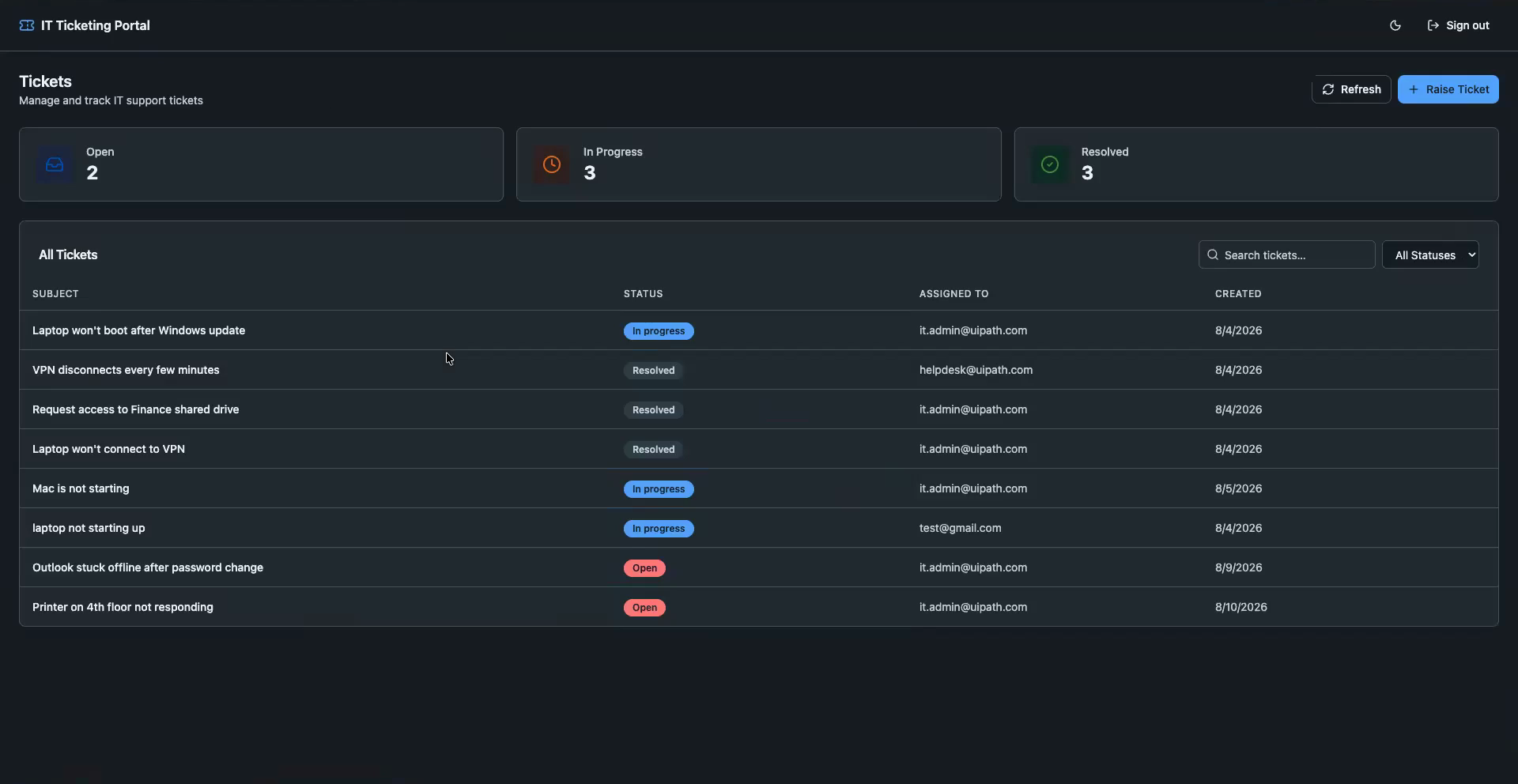
Bolt's WebContainer can reach npm and *.uipath.com, so the whole pipeline runs in place (note: GitHub access is blocked in WebContainer). The skill signs in, builds, packs, publishes and deploys, then reports the hosted URL:
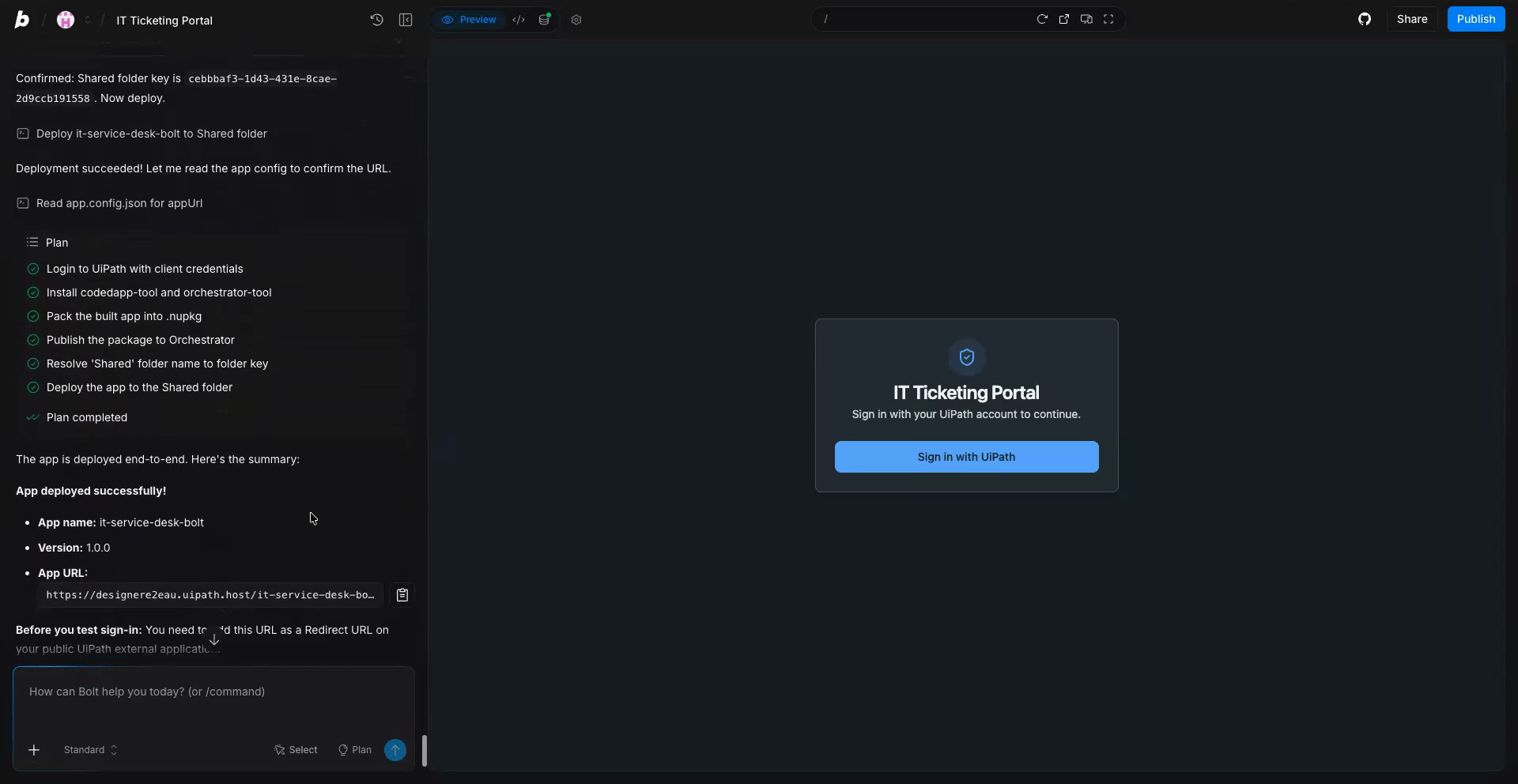
Open that URL and sign in to see the finished app:
Alternative — run the deploy yourself
If prompting gives you trouble (agent stuck mid-deploy, .env not picked up), open Bolt's terminal and run the same steps by hand:
set -a; source .env; set +a   # .env is not auto-loaded into the shell
uip login --client-id $UIPATH_CLIENT_ID --client-secret $UIPATH_CLIENT_SECRET \
  --organization <org> --tenant <tenant> \
  --scope "OR.Default Apps.Read Apps.Write"
npm run build
uip codedapp pack dist -n <app-name> --version 1.0.0
uip codedapp publish
uip codedapp deploy --folder-key <folder-key>   # uip or folders list --output json
Troubleshooting
- Agent says the skill "isn't available" although it's in your library — the skill isn't enabled for this project. Project Settings → Skills → enable it, then start a new chat.
- Agent locks up after activating the skill ("not in the allowed-tools union") — the skill was ZIP-imported with its
allowed-tools:frontmatter intact. Delete the custom skill, strip that line fromSKILL.md, re-upload, and start a new chat (see Step 1). - ZIP import rejects a file ("unsupported extension") — Bolt's skill importer accepts only
.mdfiles. Remove or markdown-wrap other assets before zipping. - GitHub-based steps fail in the terminal — Bolt's WebContainer blocks GitHub; use npm (
@uipath/skills,@uipath/cli) rather than cloning from GitHub. - Secret not available to the shell — Bolt does not expose its managed secrets to the shell; use the
.envroute from Step 3. - Sign-in fails with
Invalid redirect_uriin the preview — the WebContainer preview URL (https://…webcontainer-api.io) is the app's real origin;localhostnever works there. Setuipath.json→redirectUrito the preview URL and register it (with and without trailing slash — matching is exact) on the public external app. The hostname changes between sessions, so for anything beyond a quick test register the app's published URL instead. - Deploy says the app is "already deployed" and won't upgrade — an app with that name was deployed from a different project; the CLI can only upgrade deployments made from the same registration. Publish and deploy under a new name (or delete the existing deployed app in UiPath first).
- Deploy says the version "has not been published yet" — usually caused by passing
--version; omit it so deploy targets Latest, and keep publish and deploy in the sameuip loginsession.
Common to all builders:
index.html not foundduringuip codedapp pack— the build is SSR or the dist root is nested. Switch to a static SPA build soindex.htmlsits at the top ofdist/.401on publish/deploy — the deploy identity lacks access. Use a confidential app (client id + secret) or a PAT with the scopes above, and make sure it is assigned to the target Orchestrator folder.- Assets 404 after deploy — set Vite
base: './'and usegetAppBase()as your router basename. See Coded Apps → Getting Started.